 BindlrComing soon
EXPLORE BINDLR / BINDER BUILDER
Every page. A little more you.
Build a binder around the way you collect. Learn to tap or drag cards into place, insert between pockets, arrange cards in bulk and customise your pages, from your first layout to a complete set binder.
01 / BINDER BUILDER
Choose your binder size
Start with a layout that suits your collection, whether you are planning a small themed binder or making room for a larger project.
How to get started
- Create a binder and give it a name.
- Choose a binder preset and check its page layout and capacity.
- Create the binder, then start planning your pages.
02 / BINDER BUILDER
Change an existing binder’s size
You can change the size of a binder after creating it, so your existing plan can move into a different page layout.
How to get started
- Open binder settings and find Binder size.
- Choose the new size from the available presets.
- Review the confirmation, then choose Save changes.
- Check the new layout and the tray for any items that need placing.
Items keep their order. Cards that no longer fit, and two-slot items that cannot fit cleanly in the new layout, move to the queue. Layouts beyond the standard 3 × 3 require Bindlr+.
03 / BINDER BUILDER
Drag and drop, or tap to place
Arrange your binder in Edit mode using whichever interaction feels easier. Drag cards into position, or select them with a tap and choose their destination.
How to get started
- Open your binder and switch to Edit mode.
- To drag: press and hold a card in the binder or tray, move it to a destination, then release.
- To use taps: tap a card to select it, then tap the destination pocket. Follow the placement prompt if another tap is needed to confirm.
- Review the result and save your binder changes.
A quick double tap on the selected pocket opens its selection details. You do not need to drag to arrange your cards.
04 / BINDER BUILDER
Insert between existing slots
Use the insertion boundary between pockets to place an item before another card and shift the following items forward, rather than replacing the card already there.
How to get started
- Enter Edit mode and select the card or item you want to insert.
- Tap the insertion boundary before the destination pocket, or drag the item to that boundary.
- Check the shifted layout and save when you are happy with the order.
For a full binder, check “Inserting into a full binder” in settings. Prevent insert keeps the layout unchanged; Move overflow sends overflow items to the queue; Delete overflow removes them from this binder while keeping your collection.
05 / BINDER BUILDER
Place several cards together
Bulk placement arranges a catalogue multi-selection or Set Import together. Choose how it should handle pockets that already contain cards.
How to get started
- In binder settings, choose a Bulk placement mode: Swap, Empty slots only, Insert and shift, or Overwrite.
- Select multiple cards in the catalogue, or choose a Set Import, and bring them into the placement workflow.
- Choose the starting pocket, review the placement preview and confirm.
- Check the binder and tray, then save your changes.
Empty slots only skips occupied pockets. Insert and shift moves following cards forward. Swap exchanges cards with the destination slots. Overwrite replaces the destination cards and returns them to the queue.
06 / BINDER BUILDER
Close the gaps in your binder
Compact a spread or the whole binder when you want to bring its cards together and tidy up unused pockets.
How to get started
- Enter Edit mode and open binder settings.
- Under Layout, choose Compress to open the Compact binder options.
- Choose Compact spread for the current spread, or Compact all for the whole binder.
- Review the new arrangement before saving.
Compacting changes the layout. Check any intentional spaces in a themed or Michi-method design before saving.
07 / BINDER BUILDER
Flip cards and show their reverse
Use the selected item’s presentation controls to flip it horizontally or vertically, or show the reverse face when the catalogue provides one.
How to get started
- In Edit mode, select the card or items you want to change.
- Open Target options using the tools button.
- Choose Flip Horizontal or Flip Vertical. For a card with a supported back face, choose Reverse to switch faces.
- Review the presentation on the page, then save.
Reverse shows a card’s back face where available. It is separate from a reverse-holo finish.
08 / BINDER BUILDER
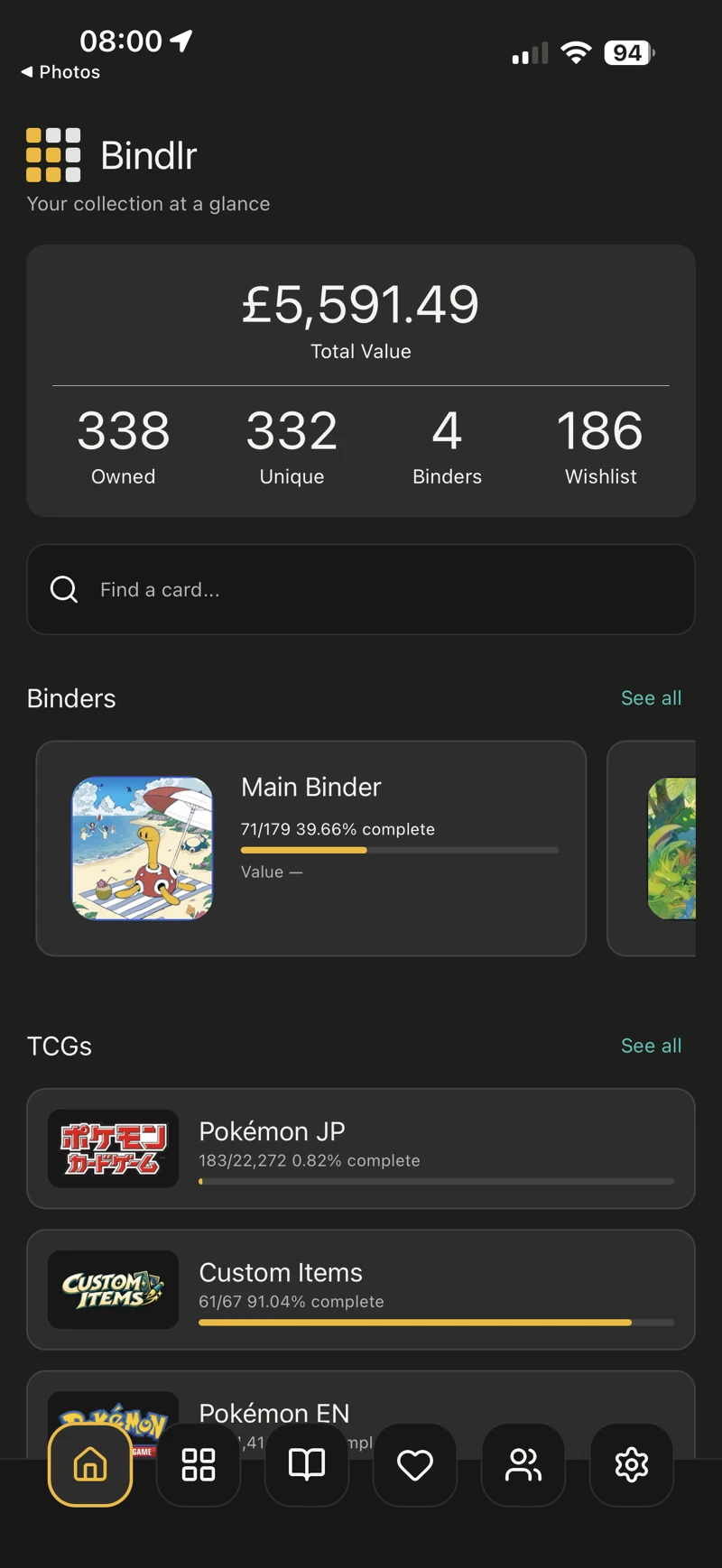
Make the cover your own
Give each binder a recognisable cover, using artwork or an image that fits its theme.
How to get started
- Open the binder and its cover options.
- Choose your cover image and adjust how it fits.
- Save the cover so it appears with your binder.
 View full size
 09 / BINDER BUILDER
Customise covers, pages and sleeves
Choose the colours around your cards as well as the artwork on your cover. External cover, Interior binder and Sleeves each control a different part of the binder.
How to get started
- Open binder settings and find Appearance.
- Change External cover for the front and back covers.
- Change Interior binder for inside covers and page surfaces, and Sleeves for the pocket backgrounds.
- Save the settings and review your pages and spreads.
Custom binder colours are included with Bindlr+. These colours are separate from the unassigned-card appearance options.
10 / BINDER BUILDER
Plan with the Michi method
Bring cards and custom artwork together in a considered page layout. Leave room around your favourites or use artwork across neighbouring pockets.
How to get started
- Choose the cards and artwork for your theme.
- Arrange them on the page, including artwork that occupies more than one pocket.
- Review the complete page or spread and save your design.
Shuckle artwork by abi_saam .
 View full size
 11 / BINDER BUILDER
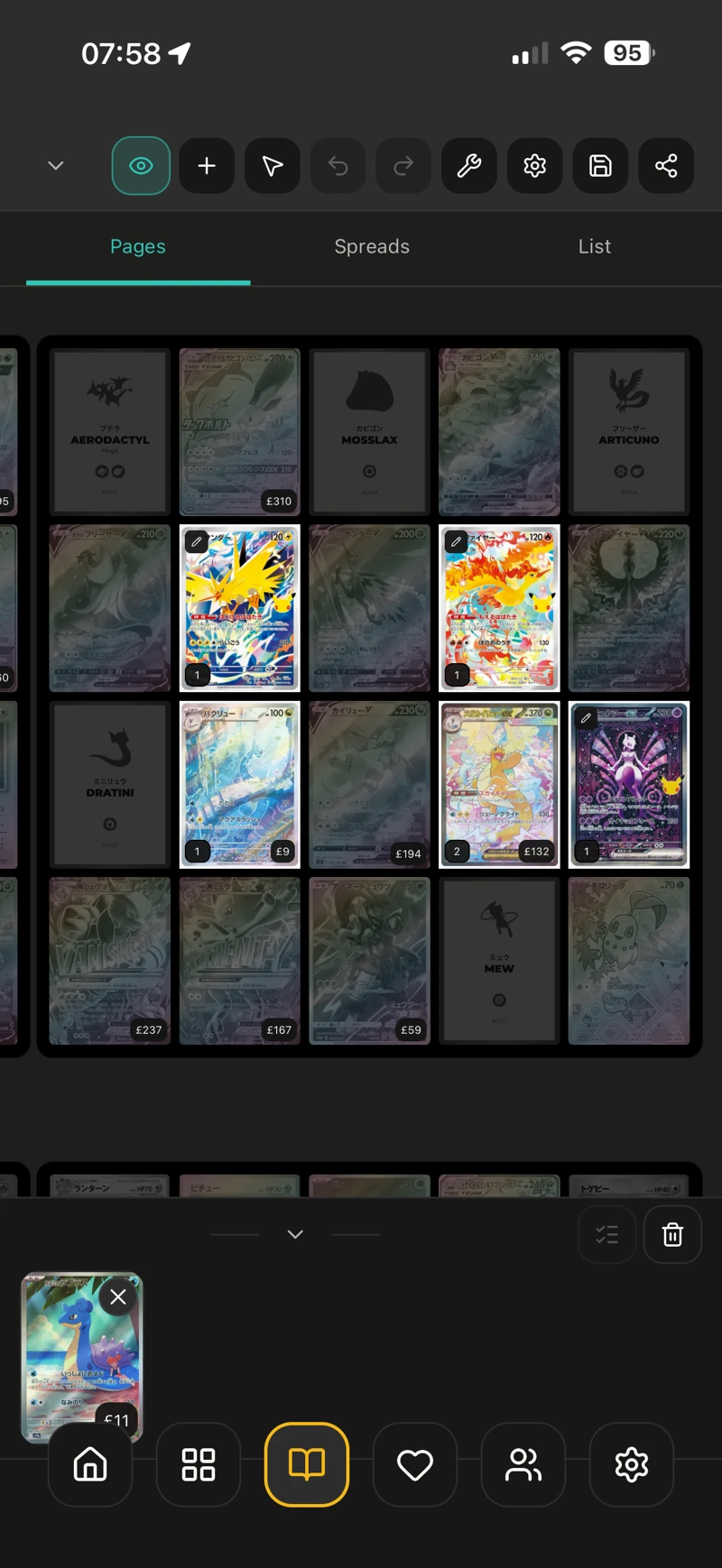
Plan a pocket. Assign a card.
A planned card gives a pocket a purpose. Assigning a copy from your inventory connects that plan to a card you actually own.
How to get started
- Add a card to your binder plan.
- Choose the copy from your inventory to assign to that target.
- Review which pockets are filled and which cards are still missing.
 View full size
 12 / BINDER BUILDER
Choose how missing cards look
Change the unassigned-card colours so you can read your binder plan at a glance and distinguish cards you own from the ones you are chasing.
How to get started
- Open your binder’s appearance options.
- Choose the colours used for unassigned cards.
- Return to the page and check the result against your owned cards.
13 / BINDER BUILDER
Give your binder a head start
Add cards in a batch rather than planning every pocket from scratch. It is a useful starting point for a larger collection or a set-based project.
How to get started
- Choose the cards or set you want to bring into the binder.
- Review the bulk import and placement options.
- Apply the import, then fine-tune the layout.
14 / BINDER BUILDER
Find the right flow
Move pages and spreads to give your binder a better sequence, from an artist showcase to a story told across facing pages.
How to get started
- Open page or spread management for your binder.
- Rearrange the pages or spreads into the order you want.
- Review the binder in its new order and save your changes.
15 / BINDER BUILDER
Build a Pokédex binder
Start from a Pokédex plan and work towards a place for each Pokémon. Placeholders help organise the plan before the collection is complete.
How to get started
- Create a binder and choose the Pokédex binder preset.
- Review the Pokédex options and the capacity required.
- Create the binder and start assigning your cards.
Pokédex placeholders organise your binder; they are not owned cards in your collection.
16 / BINDER BUILDER
Base sets, master sets and card reverses
Generate a binder plan from a catalogue set. Base Set includes one entry per card identity; Master Set also includes the concrete variant identities available for that set.
How to get started
- Choose Set binder when creating a binder, then select the TCG and set.
- Choose Base Set for the base card plan, or Master Set to include the available catalogue variants, such as supported holo and reverse-holo finishes.
- For a Magic: The Gathering Master Set binder, choose whether to Include card reverses.
- Review the card and variant counts and the required capacity before creating the binder.
- Start assigning owned copies to the generated plan and track what remains.
Variants depend on the catalogue data for the selected set. “Include card reverses” adds supported back faces; it is separate from reverse-holo variants. This switch is offered for Magic: The Gathering Master Set binders.
KEEP EXPLORING