 BindlrComing soon
EXPLORE BINDLR / MY COLLECTION
Know what you own. Enjoy what you collect.
Keep the cards, details and personal touches that make your collection yours. See the big picture, then organise the individual copies.
01 / MY COLLECTION
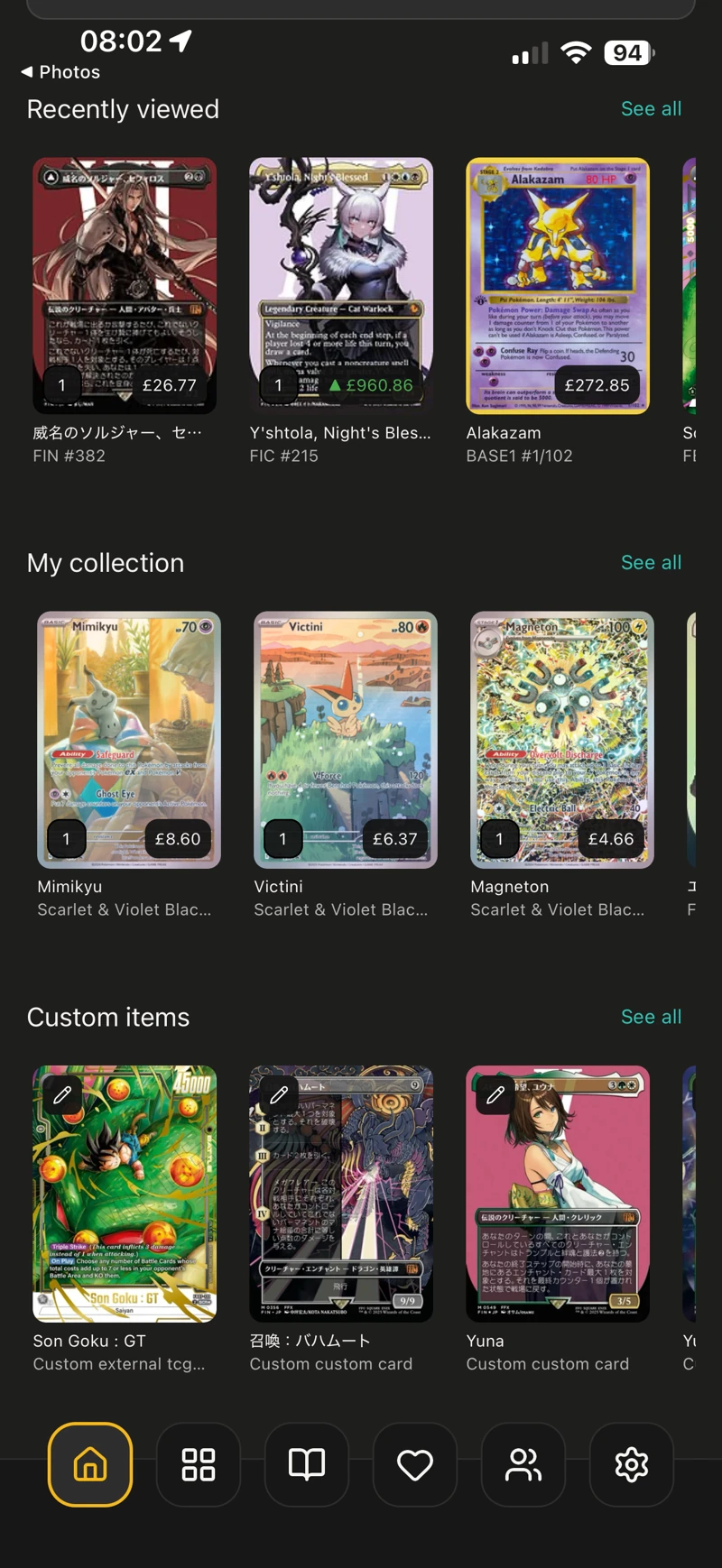
Make room for custom items
Track cards and artwork that do not appear in the catalogue, alongside the rest of your collection.
How to get started
- Create a custom item with its name and image.
- Add the details that matter to you.
- Keep it with your collection and use it in your binder plans.
 View full size
 02 / MY COLLECTION
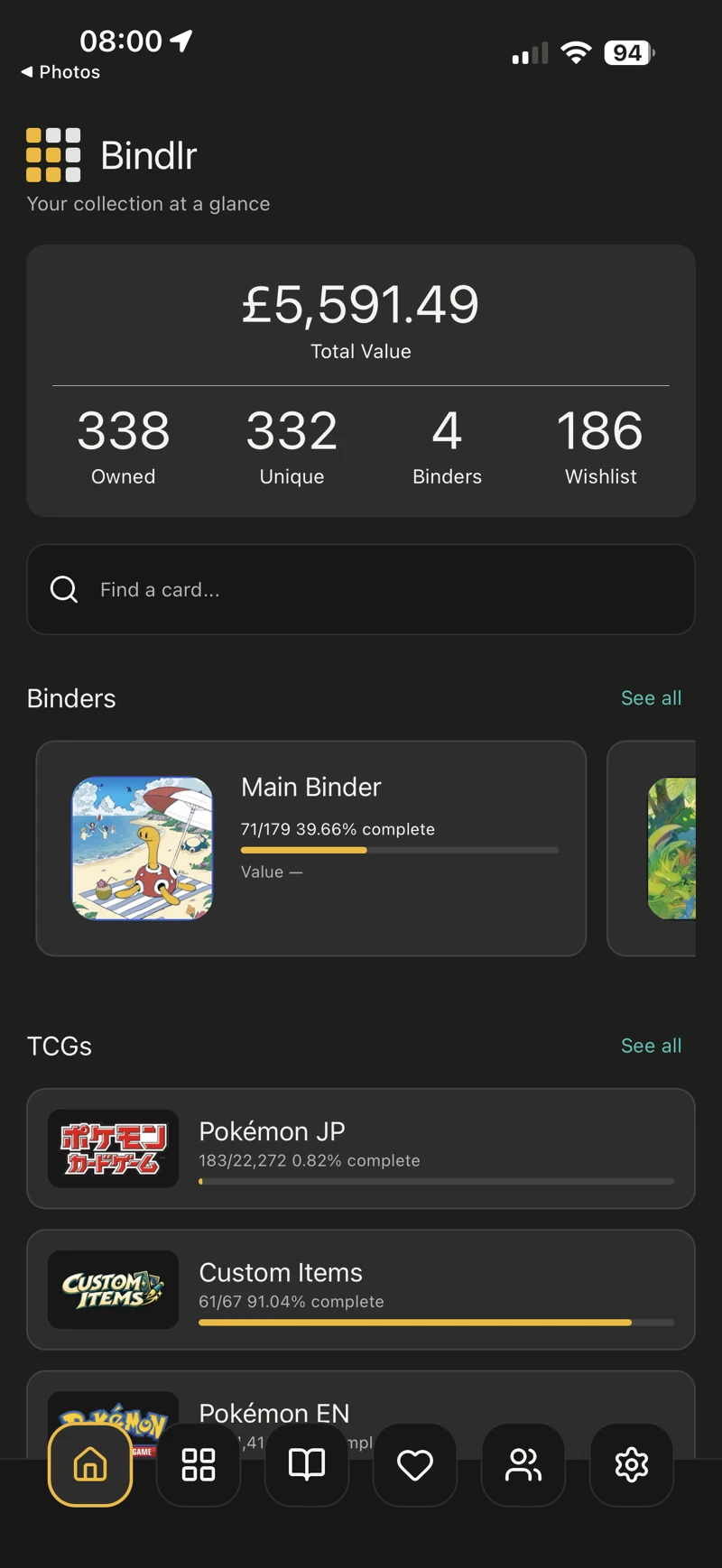
Keep value in view
See your total collection value on the home screen and explore individual card prices when you want more detail.
How to get started
- Open Home for your collection overview and total value.
- Open a card to see available pricing sources.
- Review its condition and price history for context.
Pricing coverage varies. A collection value reflects the pricing data available for your cards.
 View full size
 03 / MY COLLECTION
Get a big collection organised
Use sorting to put your collection in a useful order, and bulk editing to update the details of multiple cards without opening each one.
How to get started
- Choose a useful sort order or select the cards you want to work on.
- Use bulk editing for supported collection details.
- For a larger edit, export your Excel workbook, edit the yellow cells and import it back to preview the changes.
Excel imports update editable details. They do not add, remove or move cards.
04 / MY COLLECTION
Keep your own games together
Group custom cards into custom TCGs and sets so a homemade game or artwork collection has a home of its own.
How to get started
- Create the custom TCG and sets you need.
- Add custom items to the appropriate game and set.
- Find them again through your collection or custom catalogue.
05 / MY COLLECTION
Organise with your own labels
Use tags for the connections that matter to you, whether that is a collecting project, an artist theme or the cards you want to revisit.
How to get started
- Create your labels in Settings → Tags.
- Apply the relevant tags to your collection items.
- Use those labels to organise your collection as your interests grow.
KEEP EXPLORING