 BindlrComing soon
EXPLORE BINDLR / CATALOGUE
Find your next favourite.
Explore the games you collect, find the exact card you want and take it straight into your collection, wishlist or binder plan.
01 / CATALOGUE
Choose the TCGs you see
Keep the catalogue focused on your interests by choosing which trading card games appear.
How to get started
- Open the catalogue’s TCG choices.
- Choose the games you want to show.
- Browse the selected games and their sets.
02 / CATALOGUE
Take the catalogue offline
Download the data you need before you lose your connection. Choose entire TCGs or individual sets, or download the cards needed for a binder or wishlist.
How to get started
- Connect to the internet and choose what you want available offline.
- Start the download and wait for it to finish.
- Open your downloaded data when you are away from the internet.
Download ahead of time. The data available offline depends on what you have downloaded.
03 / CATALOGUE
Create your own catalogue
Your collecting world does not have to stop at the built-in games. Create custom TCGs and sets to give your own cards a structure.
How to get started
- Create a custom TCG and choose its details.
- Add sets for that game.
- Create custom cards and organise them into those sets.
04 / CATALOGUE
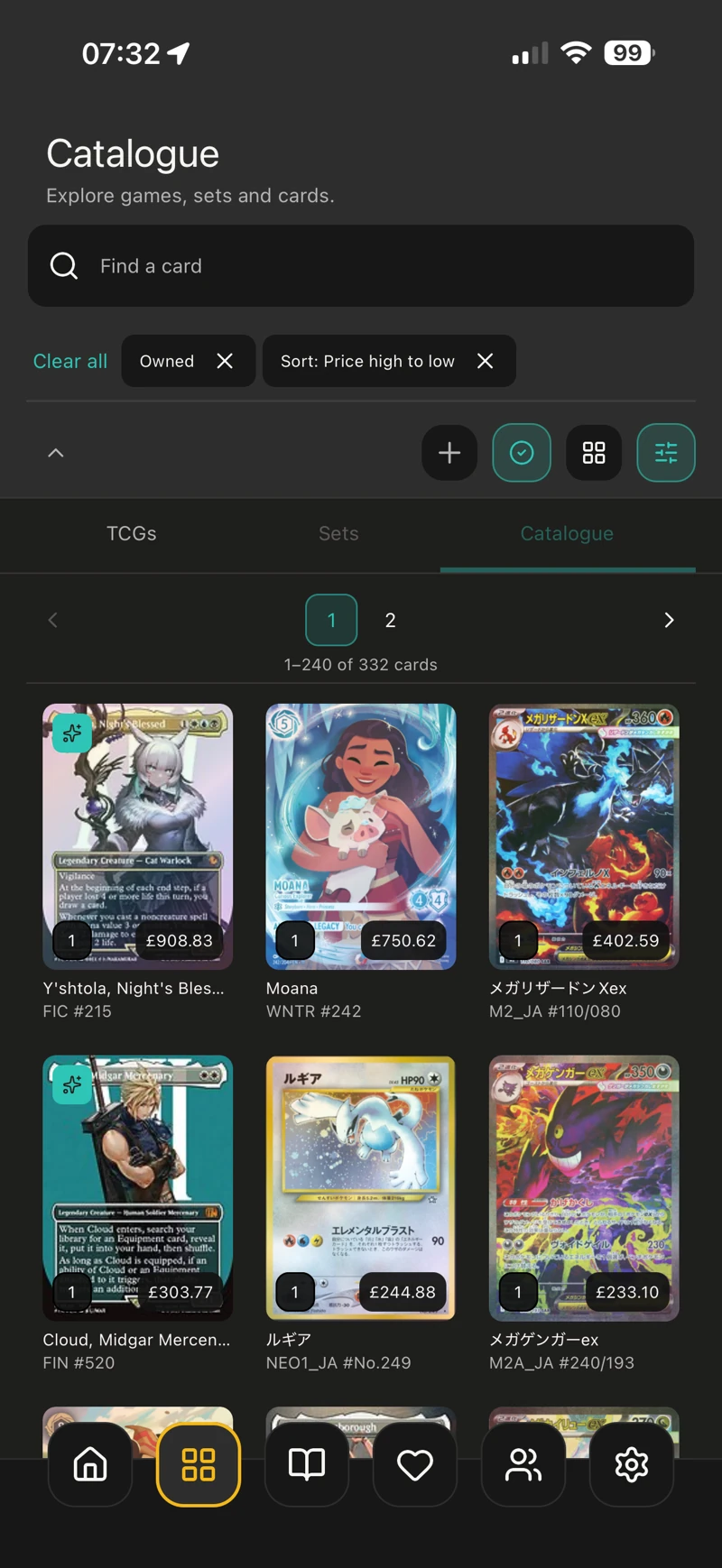
Find the card, skip the scrolling
Use search, filters and sorting to narrow the catalogue to the cards you are looking for.
How to get started
- Search for a card or open a game or set.
- Apply the filters and sort order that fit your search.
- Open a card to see its details or clear filters to explore again.
 View full size
 05 / CATALOGUE
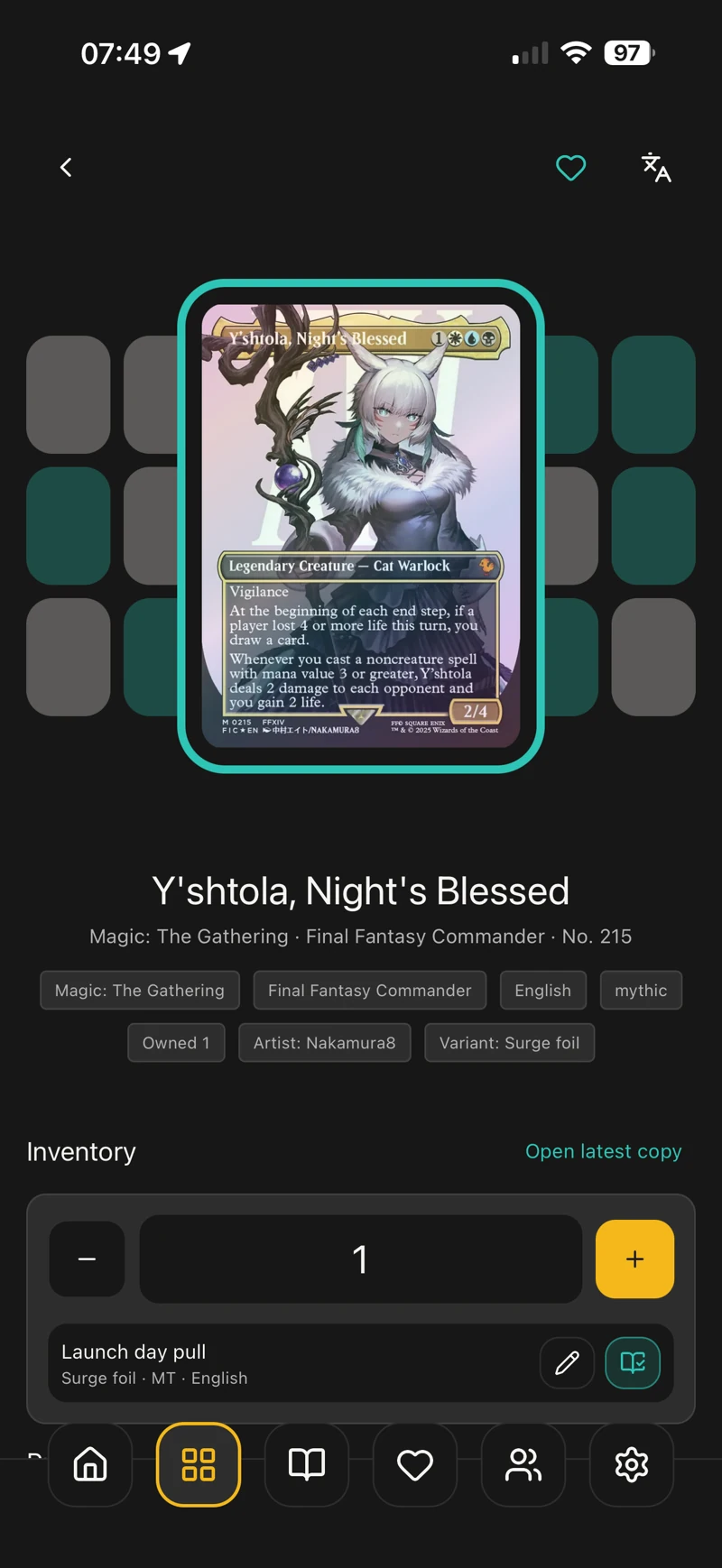
Found it? Add your copy.
Turn a catalogue entry into an owned card, then keep the details of that particular copy with it.
How to get started
- Open a card in the catalogue.
- Add a copy to your inventory.
- Review its details and add information about how you obtained it.
 View full size
 06 / CATALOGUE
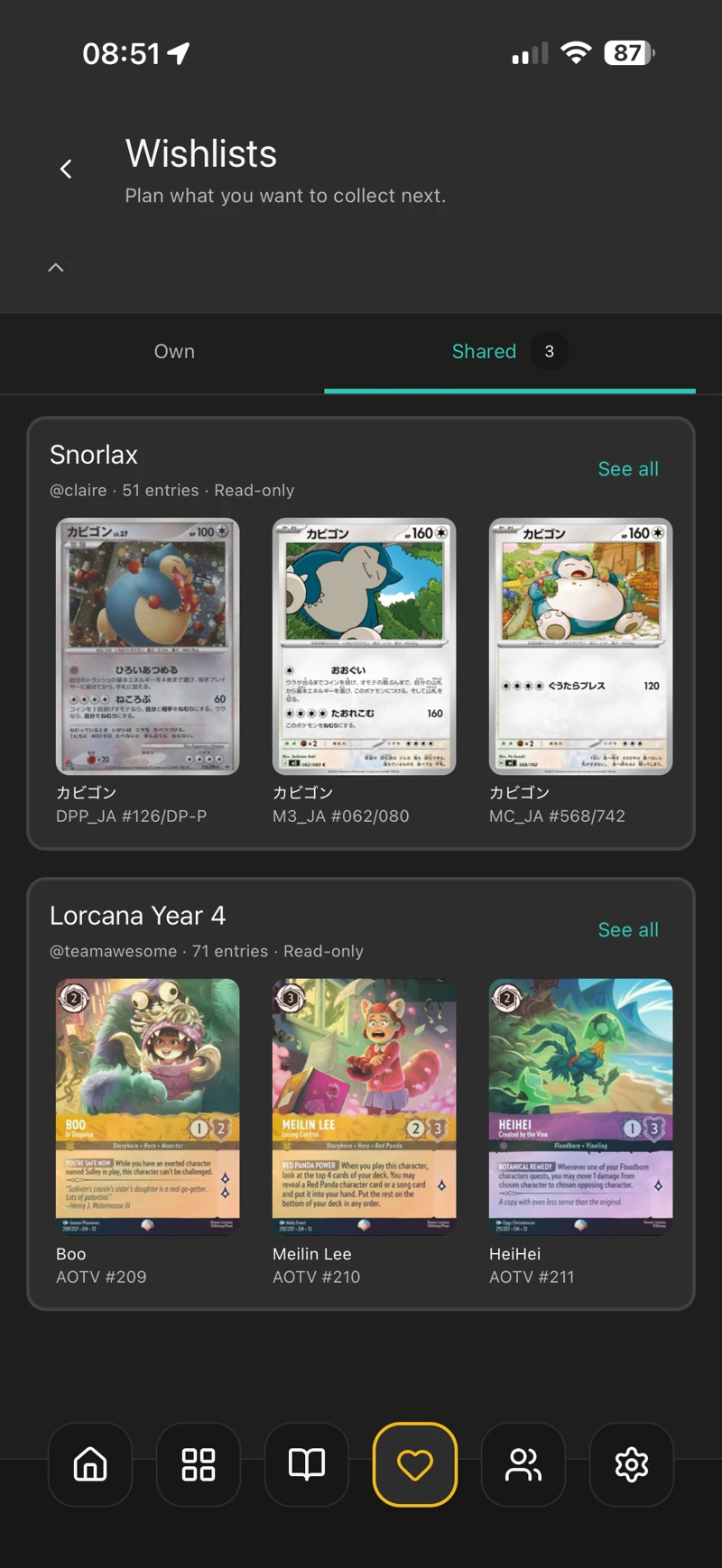
Keep your next chase close
Save cards you want to collect in a wishlist. Link a wishlist to a binder when you want it to keep track of the missing cards in that plan.
How to get started
- Choose a card and add it to a wishlist.
- Open the wishlist to review what you are chasing.
- For a binder-based list, use a linked wishlist so it updates with your binder.
 View full size
 07 / CATALOGUE
See more than one price
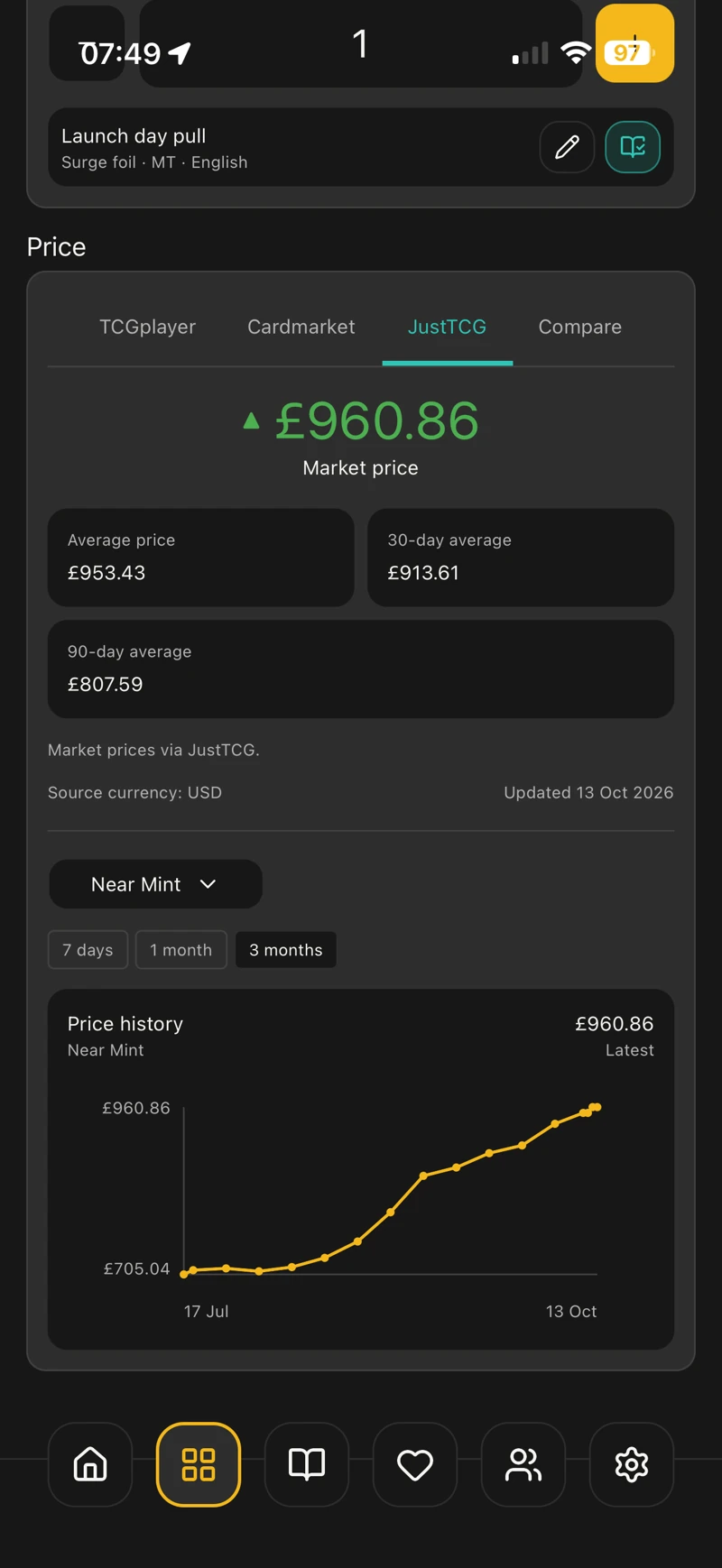
Explore pricing from multiple sources, including TCGplayer, Cardmarket and JustTCG, plus Kupo DB for Final Fantasy TCG and Scryfall for Magic: The Gathering. Choose the source used for displayed prices, with the flexibility to use a different source for each TCG.
How to get started
- Open a card and find its pricing section.
- Choose a source or compare the available sources, conditions and price history.
- Open your pricing preferences to choose your preferred source for displayed prices.
- Set a source for each TCG when you want different games to use different pricing sources.
Your preferred source controls which prices are displayed. Source availability, variant coverage and price history vary by card and game.
 View full size
 KEEP EXPLORING